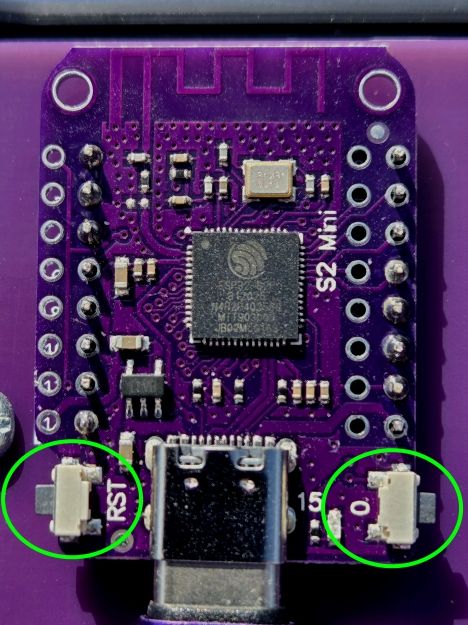
Use this photo to locate the
small pushbuttons on the ESP32 board at either side of where the USB cable is plugged in:
one is labelled 0, the other RST. In a Chrome browser (Firefox won't work), open the ESP Tool at:
https://espressif.github.io/esptool-js/ and plug
the controller into the PC. (Plug it directly into a USB socket on the PC rather than via a USB hub.) (This step is not shown in the video.) Press and hold the 0 button in, then press and release the RST button before releasing the 0 button.
This puts the ESP32 chip into programming mode. The blue LED on the front panel may glow dimly. On the ESP Tool, leave the settings as they are and click the 'Connect' button. The ESP32-S2 device should be
listed in the pop-up panel. Select it and click 'Connect' at the bottom of the pop-up. Some connection details will
appear in the black window at the bottom of the page. IMPORTANT: Make sure that the Flash Address on the ESP Tool is set to 0x1000. Click the 'Choose File' button and locate and choose the .bin file that you downloaded. Click 'Program' and the file will start uploading to the ESP32-S2. (Scroll down to view the messages in the
black console window.) Once the messages stop, click the 'Disconnect' button and check that they show 100% of the data has been uploaded.
If you get any errors, unplug the controller and start the process again using a lower baud rate under the Program heading. Before unplugging the controller, press and release the RST button to restart the ESP32-S2. Check that
the device starts its Wi-Fi scanning routine as indicated by slow flashing of the LED. Put the enclosure back together. Make sure the rubber boot where the cable enters the box is pushed tightly
into its slot on the bottom half, the leads to the LED won't get jammed, and that the padding discs that sit in the 12mm hole
over the red RESET button on the front panel are still in place.
Notes:
Following an update, the controller's Wi-Fi and Admin parmeters may be returned to their 'factory reset' values.
You may also have to clear the cache on any browsers that you have used with an earlier version of the firmware.
All Wi-Fi controllers should be used with the latest HTML file version. Once your controller has been updated,
it may not work with an earlier HTML file version.
|